
Two separate permissions
Sender authorization and link filtering are separate checks. First ask LOXE whether your property sends through an OTA email relay or API messaging. Confirm your actual sender and all link domains, then test receipt and link access.
Before you start
Use an account with permission to change messaging settings for the correct property. Have a recent LOXE invitation or ask LOXE to confirm your property’s sender and link domains. Do not infer the sender from the Reply-To address or the hotel’s contact email.
- Sender addresses to whitelist: add your hotel-specific @loxe.io address shown in LOXE → Automation flows and also no-reply@loxe.io. If you use white-label SMTP, add its configured From address as well and keep both LOXE addresses as fallbacks. Pre-check-in, reminders and retries use the same sender selection. Your contact or Reply-To address is not necessarily the sender.
- Links: inspect the actual destinations in the email, including buttons. LOXE guest and app links can use guest.loxe.io and loxekey.app.link. Confirm which domains your current invitation actually uses with LOXE.
- Custom email content: if your hotel added links while customizing its emails, include every added link’s domain in your review (for example, your hotel website, directions or a guest guide). Include any redirect or tracking domains in the delivered message.
- These are verification points, not a universal allowlist. Your live sender, custom domains and email provider’s link rewriting must be confirmed with LOXE. Adding loxe.io alone may not cover them.
Set up Booking.com
The screenshots below show the English Extranet interface. Labels may differ in your account. Use the sender and domains confirmed for your own property.
Open messaging security
In the Extranet, select your property, then Property → Messaging preferences → Security settings. You may need administrator access and two-factor authentication. Labels can vary by account language.
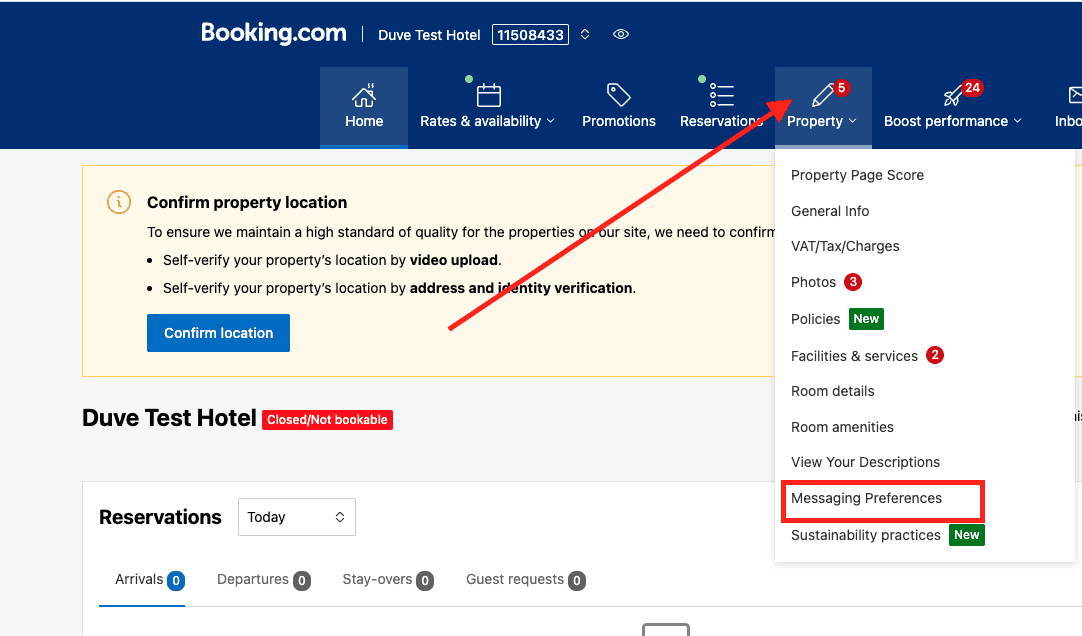
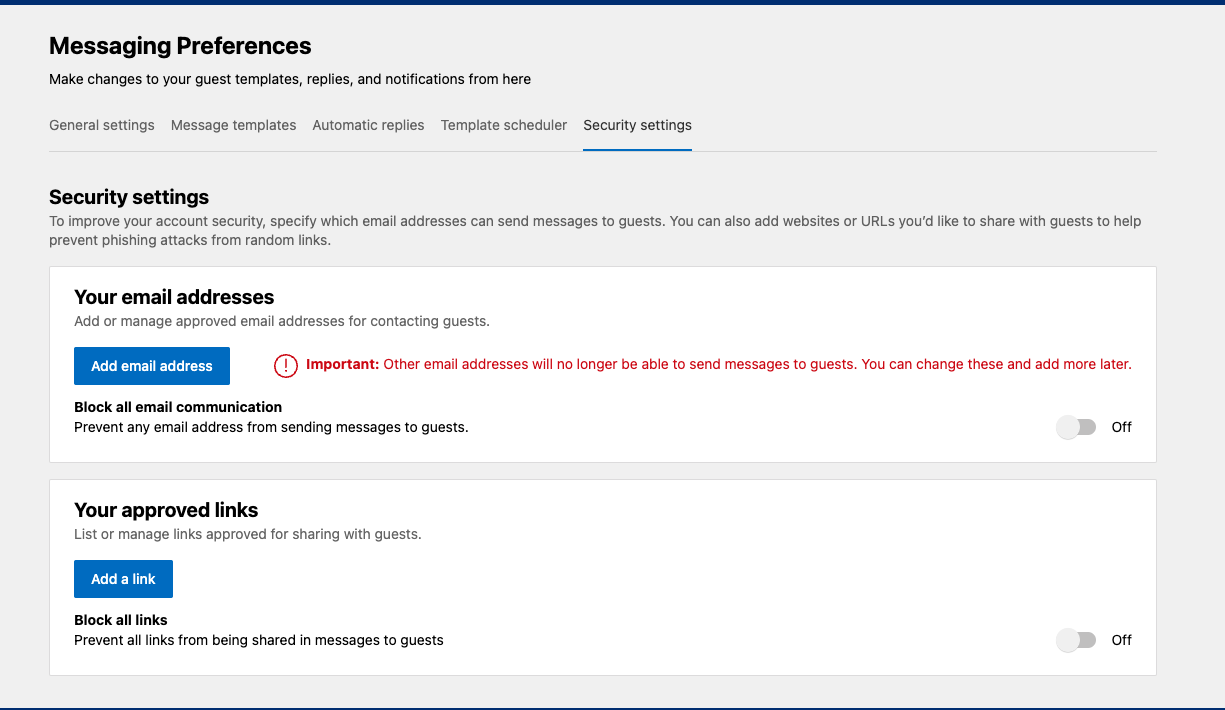
Open Property → Messaging Preferences. 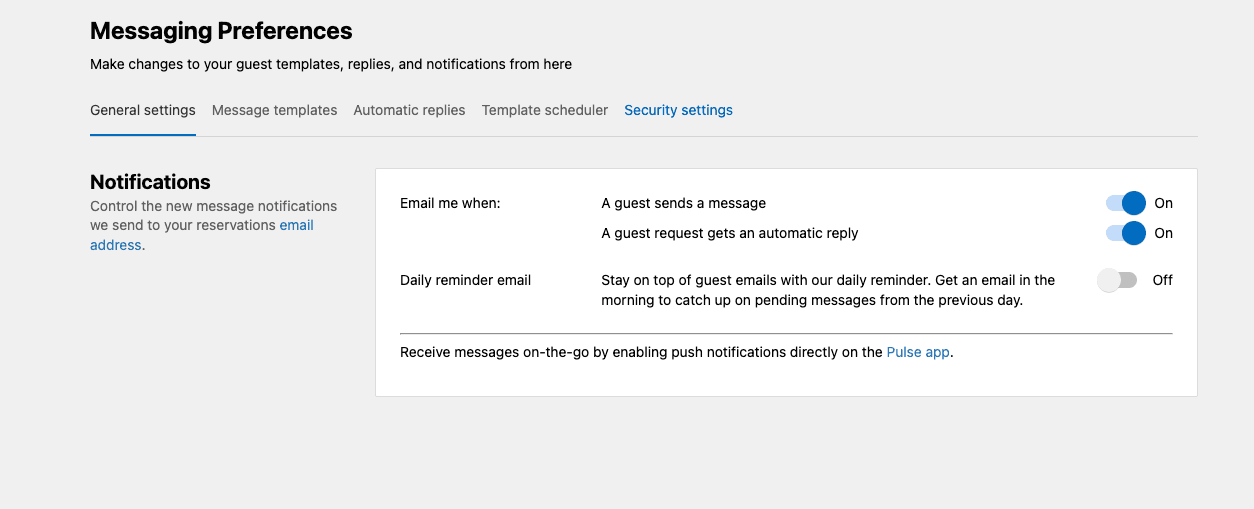
Select the Security settings tab.Select the image to enlarge (opens a new tab). 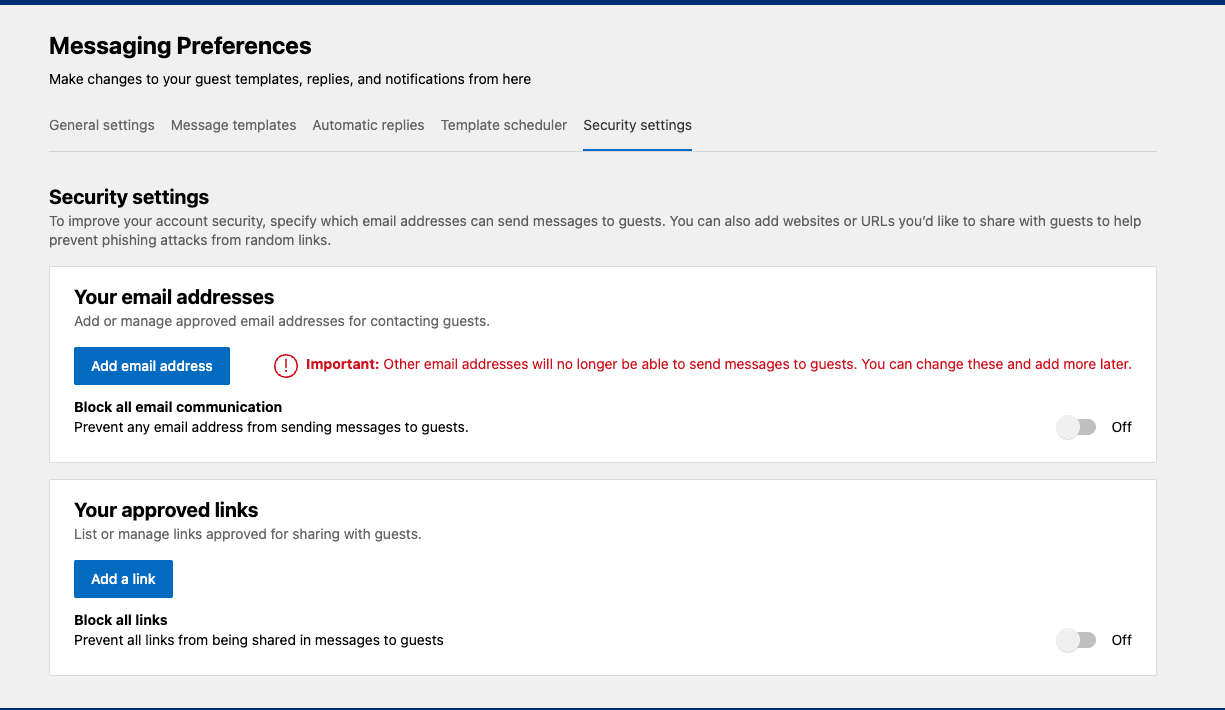
Email senders and approved links have separate lists.Select the image to enlarge (opens a new tab). Approve the email sender
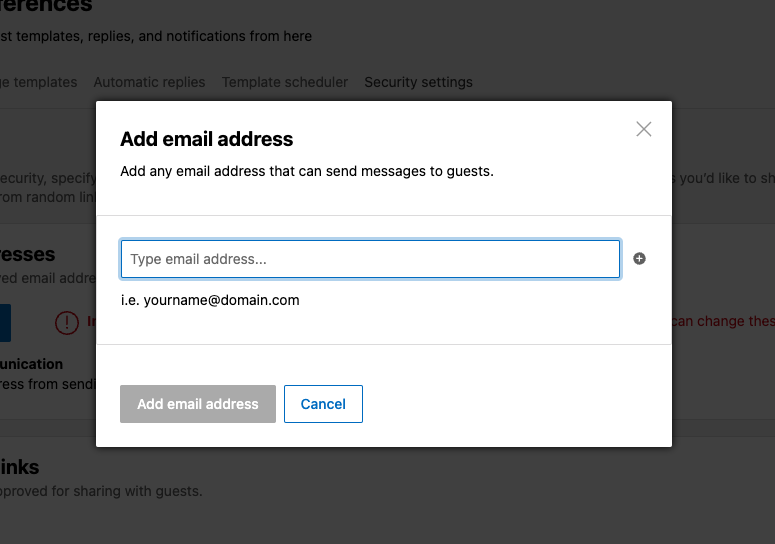
In the approved emails section, add the exact From address confirmed for your property and save. Use a full address for a narrow permission; approve a whole email domain only if your property intentionally wants that broader access. Add no-reply@loxe.io alongside your hotel-specific LOXE address. If white-label SMTP is configured, also approve its From address; keep the LOXE addresses for fallback delivery.
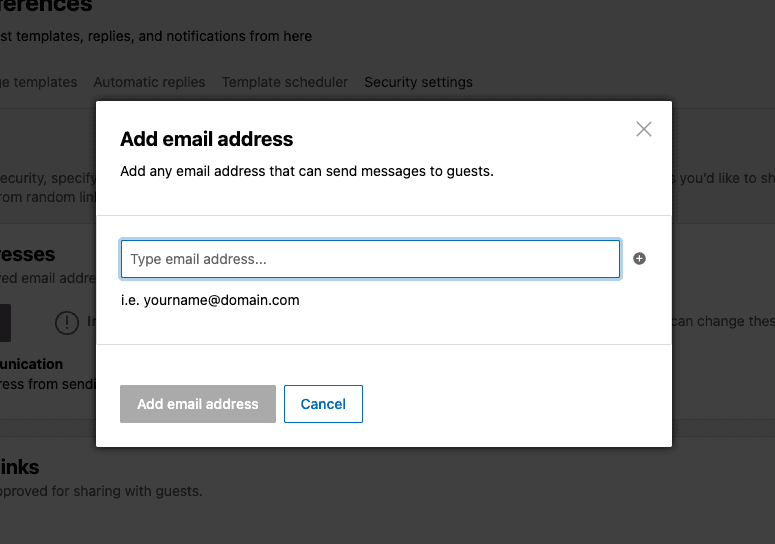
Enter the complete sender address, then select Add email address.Select the image to enlarge (opens a new tab). Approve the link domains
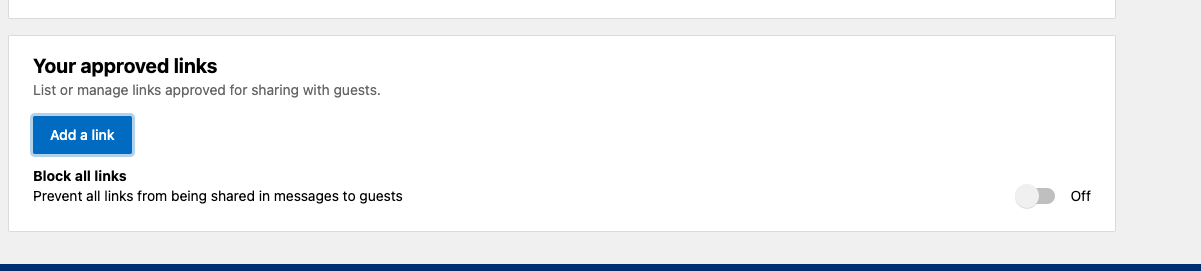
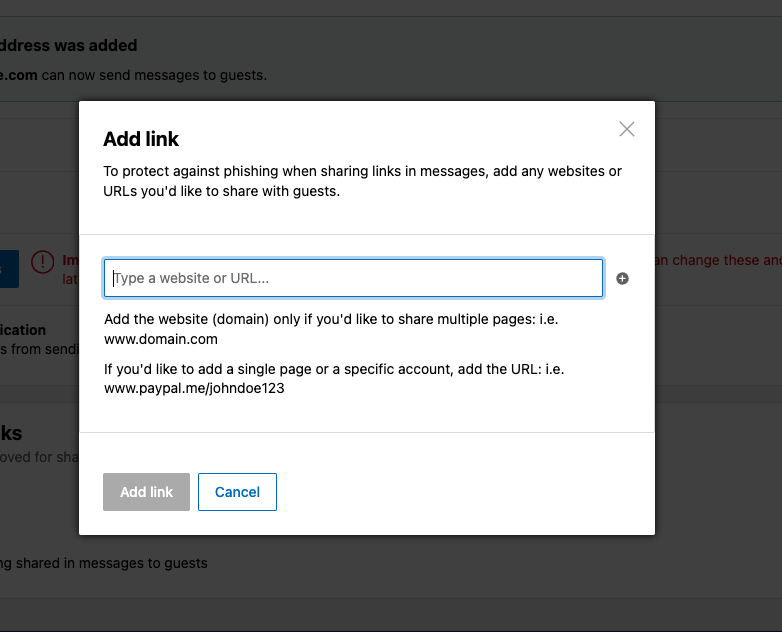
In Your approved links, add the verified domains used by your invitation and save. Also add the domain of every link your hotel inserted while customizing its emails. Check redirects and tracking hosts; approving one guest-specific URL may not cover future invitations.
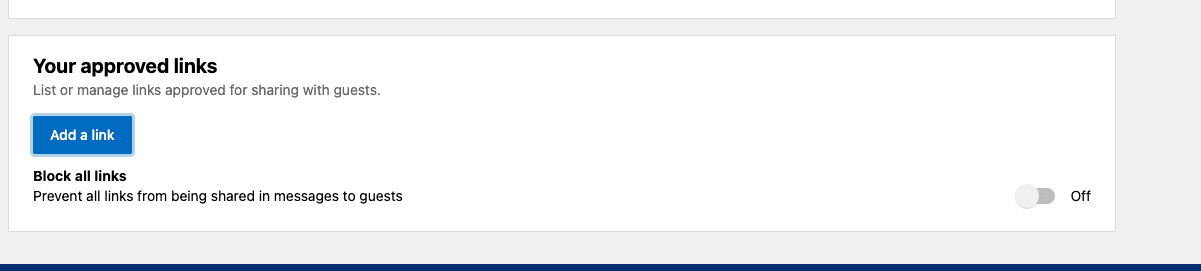
Under Your approved links, select Add a link.Select the image to enlarge (opens a new tab). 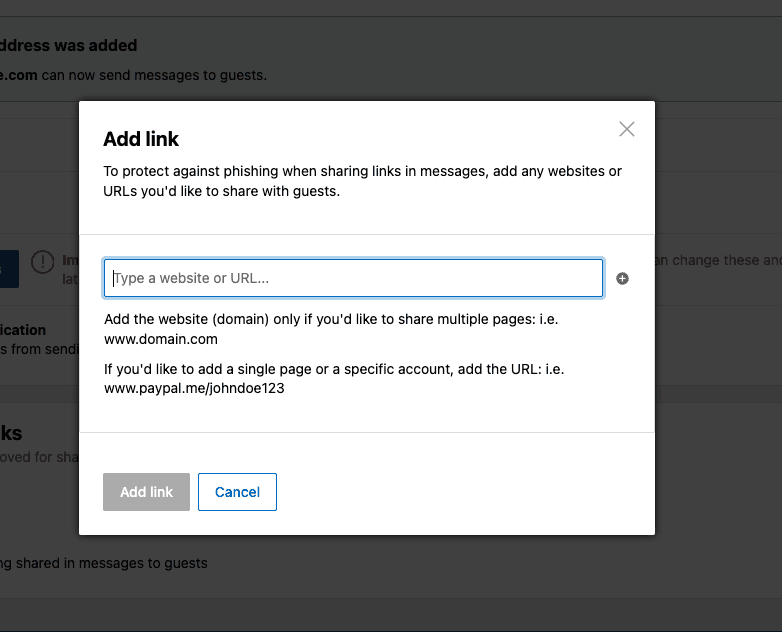
Enter the domain to cover multiple pages, then select Add link. Repeat for domains in links added to your customized emails.Select the image to enlarge (opens a new tab). Review blocking controls
Check Block all links and Block all email communication: either can override the corresponding approvals. If you intend to allow these communications, turn off the relevant blanket block while retaining your approved lists. Save and verify the settings for each property.
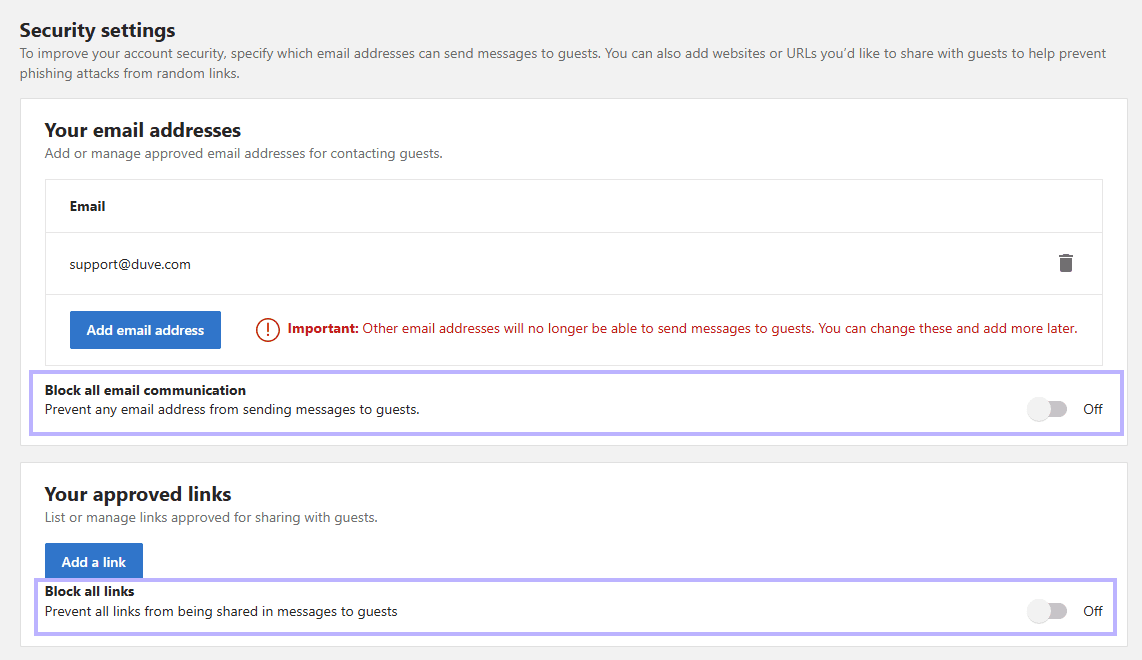
Keep both blanket blocking switches off to allow your approved emails and links. View focused on these controls.
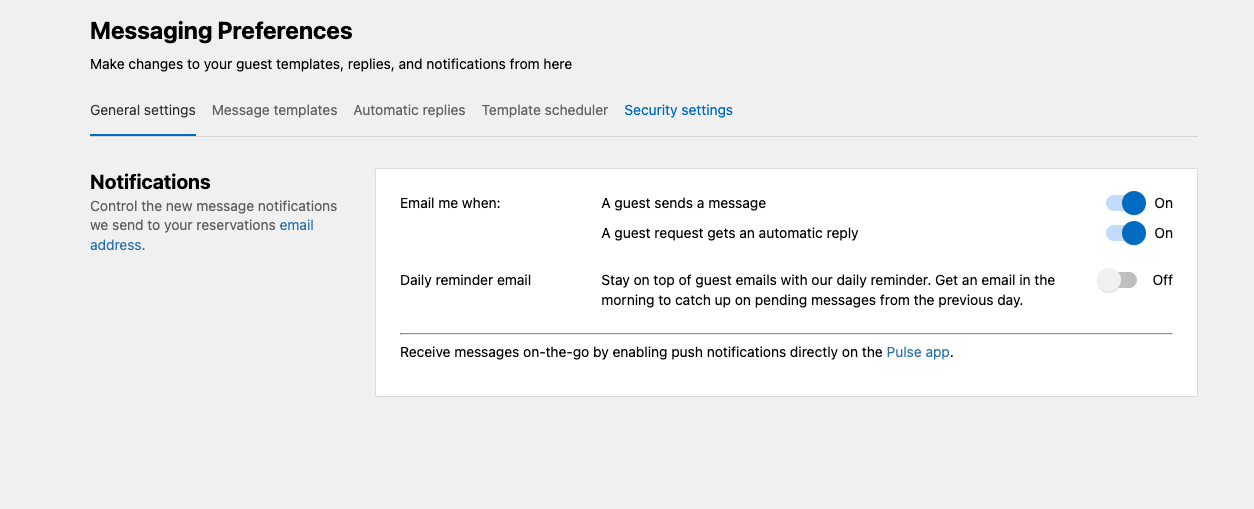
Check Expedia Partner Central
The available settings and menu names may vary by Expedia account. If you cannot find the sender authorization section, ask Expedia Partner Central support to confirm the current path and whether it applies to your property’s email relay.
Find the sender settings
Select the correct property in Partner Central. Look for Guest Relations → Message Centre → Settings → Authorised email addresses. If this section is absent or you lack access, ask your administrator or Expedia Partner Central support to confirm the current path.
Authorize your actual sender
If this control is available and LOXE sends through Expedia’s email relay, add the full From address confirmed by LOXE and save. Check each property. Do not copy another provider’s sender address or assume your Reply-To address is the sender. Add no-reply@loxe.io alongside your hotel-specific LOXE address. If white-label SMTP is configured, also approve its From address; keep the LOXE addresses for fallback delivery.
Check link behavior separately
Sender authorization does not approve link domains. Review every link in your customized emails, including links added by your hotel and any tracking redirects. If Expedia removes or blocks a link, give Partner Central support the affected domain and ask which link permissions apply. These instructions do not establish an Expedia domain-allowlist menu.
Test the full guest journey
Use a controlled reservation
Arrange a test reservation and recipient you control with LOXE. Send a fresh invitation through the same route as normal guest messages; an email sent directly to a personal inbox does not test the OTA relay.
Check delivery and content separately
Check the OTA conversation and the recipient inbox, including spam. Confirm that the message arrived, each expected link remains visible, and the buttons open the intended guest page. Avoid completing check-in or changing a real guest’s reservation during the test.
Record the result
Note the property, sender, send time and timezone, and any rejection or removed-link message. A successful send event alone does not prove that the guest received the message. Repeat for each property and whenever you change senders or email links.
Booking.com: troubleshooting
- No message: confirm that LOXE attempted the send, the recipient is the correct Booking.com relay address, and the actual sender is approved. Check rejections and global email blocking with LOXE.
- Message received, link removed: compare the exact URL host with the approved links, including domains added to customized emails and any redirects. Review the global link block. Booking.com’s API also removes unapproved links; API delivery is not an exemption.
- Link present but page will not open: ask LOXE to check the link’s validity and destination. This is different from a message or link being filtered.
- Still blocked: contact Booking.com Partner Support with the test result and ask LOXE to review the sending event. Do not assume a particular filter is the cause without evidence.
Expedia: troubleshooting
- No message: ask LOXE to verify the send event, exact From address, current reservation relay address and any rejection. Ask Expedia whether sender authorization applies to that property and delivery route.
- Message arrives without a link: compare the original and received message. Ask Expedia to review the affected domains, including links added by your hotel. Adding a sender does not resolve every link filter.
- Link is visible but does not open: ask LOXE to check the link’s validity and destination before attributing the failure to Expedia.
- Direct API messaging follows a different delivery route from email relay. Have LOXE confirm the route in use. An exemption described for another provider’s Expedia integration is not evidence of an exemption for LOXE.
Still having trouble?
Send LOXE the property and reservation references, send time and timezone, and the exact error or missing content. Share screenshots through your usual private support channel; hide guest details and access links.
Contact LOXE